
Art by Whud
¶ What is Artmap
Create your own pixel art with the Map Art perk! Purchase it from the /cubitshop or try it out for free on Creative. Artmap lets you create 32×32-pixel artworks on maps which can be displayed, sold, copied, and saved across seasons. You can even combine maps side by side to create a canvas of any size - the sky is the limit!
Features may not work as intended on Bedrock versions.
¶ Getting Started
For a quick overview, refer to the /artmap menu. This displays the required crafting recipes and all player-made artworks on the realm.
To start painting, place a Canvas on an Easel. You can craft them like so:
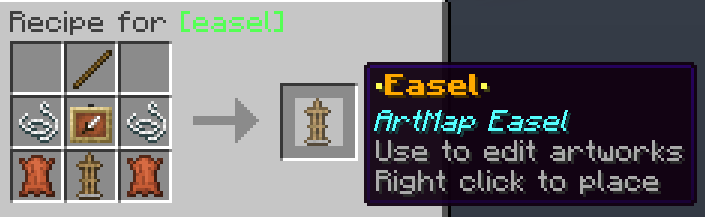
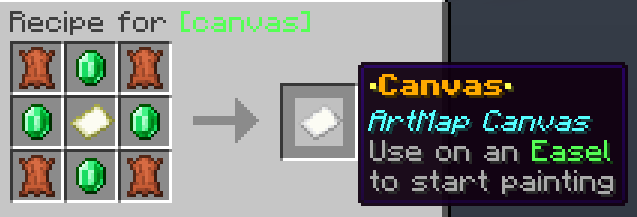
This will be your workstation; right-click the armor stand to sit down and access your painting tools.

¶ Painting
There are 62 base colors available to use. On Creative these look like paint brushes. Use the "arrow" blocks in the bottom row to navigate between four pages of colors.
Left-click the canvas while holding a color or tool to fill in one pixel, or right-click and drag for continuous painting.
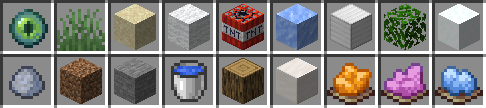
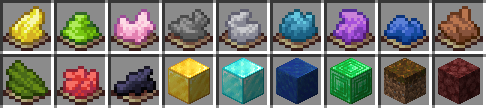
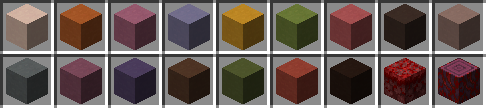

Each color has four shades, with the second-lightest selected by default.

The default background color is Wool. Void (Ender Eye) is transparent.
¶ Tools
In the bottom row of your inventory are a few tools to assist in your artist's journey. You can refresh them by going to the next page.
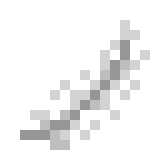 Feather: Click a colored pixel to lighten it by one shade.
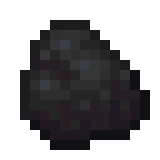 Coal: Click a colored pixel to darken it by one shade.
 Compass: Left-click to flip your painting horizontally; right-click to flip it vertically.
 Paintbrush: Use this to save your artwork when you're finished. See Saving your Art for details.
 Eyedropper: Left-click to pick a color from your canvas; right-click to paint with that color.
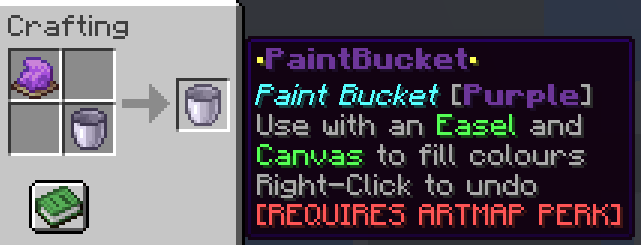
 Paint Bucket: Left-click to fill an area with the selected color, or right-click to undo the fill. Craft it with any dye to create a colored Paint Bucket, or with Coal or a Feather to create a Darken or Lighten Paint Bucket.
¶ Saving your Art
Sneak to exit the painting inventory. Your artwork will remain on the Easel, allowing you to continue editing it later. However, unsaved artwork will be lost if you destroy the Easel (shift-right-click).
When you're finished, save your artwork while sitting at the Easel. Right-click with the Paint Brush and enter a name for your art or use /art save <name>.
Each artwork must have a unique name and cannot contain special characters. To continue editing saved art, place it back on an Easel. Be careful when saving changes under an existing name, as this will update all copies of that artwork. Use a different name to keep the original version unchanged.
Warning: Check your existing artwork names in
/artmapbefore saving to avoid accidentally overwriting an artwork - this cannot be undone.

¶ Tips and Tricks
Display your art by placing it in an item frame. Players with Elite rank may use flint with the Armor Stand Editor perk to make the item frame invisible, displaying the image flat against the block behind it.
You can create copies of your own art by placing it in a crafting grid with blank maps (not Canvases).

Warning: Any items you pick up while at an Easel will be deleted when you stand up and cannot be recovered.
Browse other players' artworks by clicking the painting in /artmap. This opens a menu with player heads; click a head to preview that player's saved art.

